Create Motion Tween Animation in Flash CS3

Today we learn how to Create Motion Tween Animation in Flash CS3. Here is the final
result!
The Animation Tween
If your animation follows some simple guidelines, you can save yourself lots of work (and reduce your file size, too) by using Flash to calculate the in-between frames for you automatically. You create just the first and last keyframes, and Flash figures out what should go in between. In animation technobabble, that’s called tweening — a quick, fun way to create great animations.
You can do a lot with Flash’s tweening capabilities, including:
- Motion tweening: This is definitely the most common type of tweening. With simple motion tweening, you can move your objects in a straight line from here to there. You can use motion tweening also to animate an object along any path that you create, even one with lots of curves.
- Shape tweening: This type of tweening gradually changes any shape to another shape. You create the first and last shapes. These days, kids call it morphing. The results may be quite unpredictable and require a lot of computer processing but are usually interesting. You can add shape hints to try to tell Flash exactly how you want your shape to morph.
And with both motion tweening and shape tweening, you can:
- Change an object’s size: For example, if you make an object smaller as you move it, the object often appears to be moving away from the viewer.
- Rotate an object: You specify the amount of the rotation. Flash combines the motion or shape tweening with the rotation so that you get both effects at one time.
- Change color or transparency or both: Flash creates a gradual change in color based on your starting and ending colors.
Note: Information from Flash CS3 for Dummies ebook. Let’s start the tutorial!
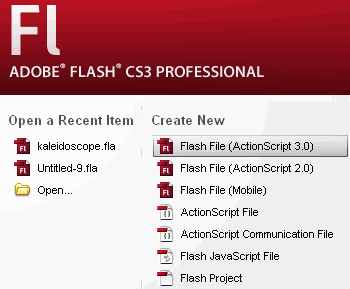
[1] Open Flash and create a new Flash File (ActionScript 3.0)
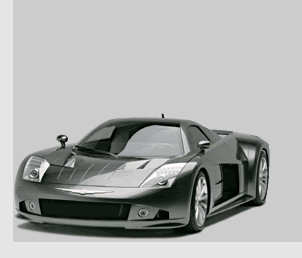
[2] Save the next picture and drop it in your document.

[2] Click on the first frame and place the image at up right corner.

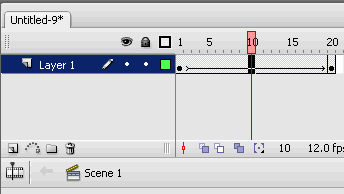
[3] Now create a keyframe where you want to end the animation

Now with frame 20 selected click on your image and place it on down left corner.
Click on the next image to enlarge
[4] It’s time to create the motion tween. Click anywhere but not on the last frame and
in the tween properties select Motion

Click on the next image to enlarge
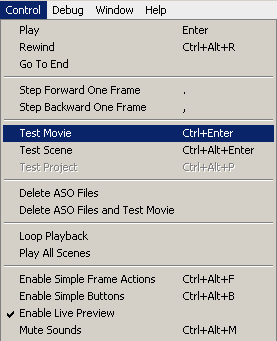
[5] Test your Movie ( Go to Control and select Test Movie or click on the first frame and
press ENTER )
[6] That’s it! Now Save your result ( Go to File and select Publish )

Thank you and you can see the final result here!
UPDATE! I made a video for this tutorial, you can see it HERE!
Tags: Adobe, Design, Flash CS3, Flash Tutorial, how to, macromedia, Motion Tween, swf, tips&tricks, webdesign
November 14th, 2007 at 11:21 am
Create Motion Tween Animation in Flash CS3 | PiticStyle…
Learn how to Create Motion Tween Animation in Flash CS3…
November 14th, 2007 at 11:46 am
[...] Check it out here [...]
November 14th, 2007 at 3:43 pm
[...] full story here [...]
November 15th, 2007 at 10:08 am
[...] here for full [...]