Design an FREE Coupon in Adobe Photoshop

[1] Open Adobe Photoshop and create a new document with this size 200 px with 200px and with the background TRANSPARENT.

[2] Now you need to select the Custom Shape Tool.
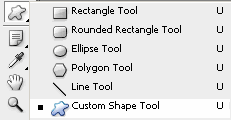
[3] Select your Shape. I select Flower 2.
[4] Draw the shape in your document and change the color to orange or a color that
attract the attention. I use #FC6A08
Click where is the arrow in the image to change the color.
[5] Now with the Layer Style open, we put some style on our shape to be more attractive. First we make a stroke, with the white color.
[6] Go to drop Drop Shadow, play with Angle and the other properties.
[7] Is time to put some text on the shape.
[8] Now save the image like PNG and that’s it!
Thank you and I hope this tutorial was useful! If you want send me an email
(piticstyle(@)yahoo(dot)com) with your result and I publish it!
Tags: Adobe, Adobe Photoshop Tutorials, Design, Design an Free Coupon in Adobe Photoshop, draw, Free Coupon, how to, Shape in Adobe Phoshop, Sticky, tutorial, webdesign
November 6th, 2007 at 3:57 am
[...] nobody@flickr.com (totokima) wrote an interesting post today onHere’s a quick excerpt[1] Open Adobe Photoshop and create a new document with this size 200 px with 200px and with the background TRANSPARENT. [2] Now you need to select the Custom Shape Tool. [...]
November 7th, 2007 at 5:34 am
[...] more here [...]